 Will Boyd
wordpress-export-to-markdown
Converts a WordPress export XML file into Markdown files. This makes it easy to migrate from WordPress to a static site generator (Eleventy, Gatsby, Hugo, etc.).
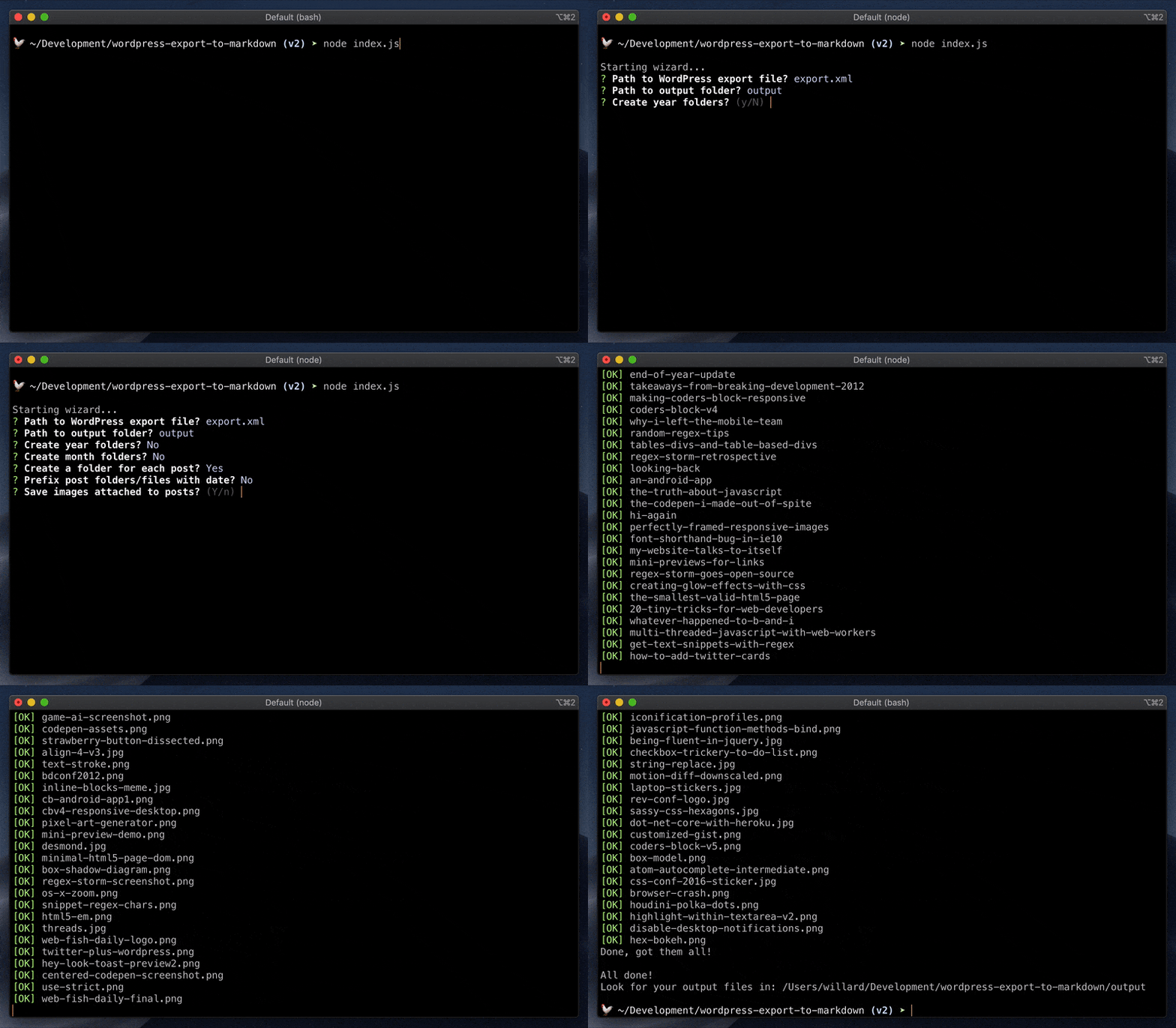
Features
- Saves each post as a separate Markdown file with frontmatter.
- Also saves drafts, pages, and custom post types, if you have any.
- Downloads images and updates references to them.
- User-friendly wizard guides you through the process.
- Lots of command line options for configuration, if needed.
Quick Start
You'll need:
- Node.js installed.
- Your WordPress export file. Be sure to export "All Content".
Then run this in your terminal:
npx wordpress-export-to-markdown
Options
The script will start with a wizard to ask you a few questions.
Optionally, you can provide answers to any of these questions via command line arguments, in which case the wizard will skip asking those questions. Here's an example:
npx wordpress-export-to-markdown --post-folders=false --prefix-date=true
The questions, and their command line arguments, are given below.
Path to WordPress export file? (--input)
The path to your WordPress export file. Default is export.xml.
To make things easier, you can rename your WordPress export file to export.xml and drop it into the same directory that you run the script from.
Put each post into its own folder? (--post-folders)
Whether or not a separate folder is created for each post's Markdown file (and images). Default is true.
| Value | Description |
|---|---|
true |
A folder is created for each post, with an index.md file and /images folder within. The post slug is used to name the folder. |
false |
The post slug is used to name each post's Markdown file. These files are all saved in the same folder. All images are saved in a shared /images folder. |
Add date prefix to posts? (--prefix-date)
Whether or not the post date is prepended when naming a post's folder or file. Default is false.
| Value | Description |
|---|---|
true |
Prepend the date, in the format <year>-<month>-<day>. Nothing will be prepended if there is no date (for example, an undated draft post). |
false |
Don't prepend the date. |
Organize posts into date folders? (--date-folders)
If and how output is organized into folders based on date. Default is none.
| Value | Description |
|---|---|
year |
Output is organized into folders by year. This won't happen for posts with no date (for example, an undated draft post). |
year‑month |
Output is organized into folders by year, then into nested folders by month. Again, for posts with no date, this won't happen. |
none |
No date folders are created. |
Save images? (--save-images)
Which images you want to download and save. Default is all.
| Value | Description |
|---|---|
attached |
Save images attached to posts. Generally speaking, these are images that were uploaded by using Add Media or Set Featured Image in WordPress. |
scraped |
Save images scraped from <img> tags in post body content. The <img> tags are updated to point to where the images are saved. |
all |
Save all images, essentially attached and scraped together. |
none |
Don't save any images. |
Advanced Options
These are not included in the wizard, so you'll need to set them on the command line.
Path to output folder? (--output)
The path to the output folder where files will be saved. It'll be created if it doesn't exist. Default is output.
Existing files in the output folder won't be overwritten. Furthermore, existing images won't be downloaded again. This essentially lets you resume progress by restarting the script, if it was previously terminated early.
To start clean, delete the output folder.
Frontmatter fields? (--frontmatter-fields)
Comma separated list of the frontmatter fields to include in Markdown files. Order is preserved. If a post doesn't have a value for a frontmatter field, it is left off. Default is title,date,categories,tags,coverImage,draft.
Available frontmatter fields are: author, categories, coverImage, date, draft, excerpt, id, slug, tags, title, type.
You can rename a frontmatter field by appending : followed by the alias to use. For example, date:created will rename date to created.