# wordpress-export-to-markdown
Converts a WordPress export file into Markdown files that are compatible with static site generators ([Eleventy](https://www.11ty.dev/), [Gatsby](https://www.gatsbyjs.com/), [Hugo](https://gohugo.io/), etc.).
Each post is saved as a separate Markdown file with frontmatter. Images are downloaded and saved.
## Quick Start
You'll need:
- [Node.js](https://nodejs.org/) installed
- Your [WordPress export file](https://wordpress.org/support/article/tools-export-screen/) (be sure to export "All content").
To make things easier, you can rename your WordPress export file to `export.xml` and drop it into the same directory that you run this script from.
You can run this script immediately in your terminal with `npx`:
```
npx wordpress-export-to-markdown
```
Or you can clone this repo, then from within the repo's directory, install and run:
```
npm install && node index.js
```
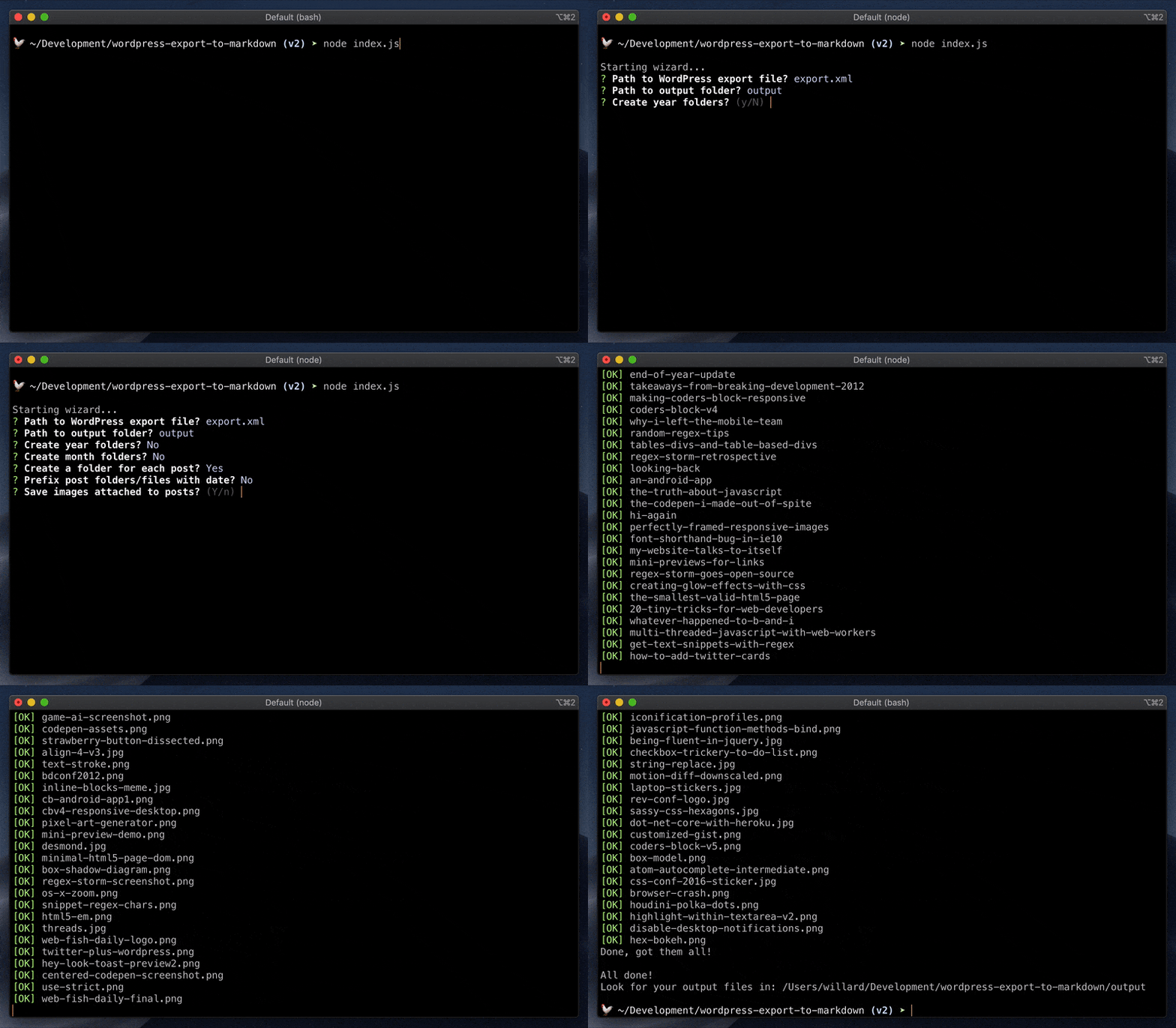
Either way, the script will start a wizard to configure your options. Answer the questions and off you go!
## Command Line
Options can also be configured via the command line. The wizard will skip asking about any such options. For example, the following will give you [Jekyll](https://jekyllrb.com/)-style output in terms of folder structure and filenames.
Using `npx`:
```
npx wordpress-export-to-markdown --post-folders=false --prefix-date=true
```
Using a locally cloned repo:
```
node index.js --post-folders=false --prefix-date=true
```
The wizard will still ask you about any options not specified on the command line. To skip the wizard entirely and use default values for unspecified options, add `--wizard=false`.
## Options
These are the questions asked by the wizard. Command line arguments, along with their default values, are also being provided here if you want to use them.
### Path to WordPress export file?
**Command line:** `--input=export.xml`
The path to your WordPress export file. To make things easier, you can rename your WordPress export file to `export.xml` and drop it into the same directory that you run this script from.
### Path to output folder?
**Command line:** `--output=output`
The path to the output directory where Markdown and image files will be saved. If it does not exist, it will be created.
### Create year folders?
**Command line:** `--year-folders=false`
Whether or not to organize output files into folders by year.
### Create month folders?
**Command line:** `--month-folders=false`
Whether or not to organize output files into folders by month. You'll probably want to combine this with `--year-folders` to organize files by year then month.
### Create a folder for each post?
**Command line:** `--post-folders=true`
Whether or not to save files and images into post folders.
If `true`, the post slug is used for the folder name and the post's Markdown file is named `index.md`. Each post folder will have its own `/images` folder.
/first-post
/images
potato.png
index.md
/second-post
/images
carrot.jpg
celery.jpg
index.md
If `false`, the post slug is used to name the post's Markdown file. These files will be side-by-side and images will go into a shared `/images` folder.
/images
carrot.jpg
celery.jpg
potato.png
first-post.md
second-post.md
Either way, this can be combined with with `--year-folders` and `--month-folders`, in which case the above output will be organized under the appropriate year and month folders.
### Prefix post folders/files with date?
**Command line:** `--prefix-date=false`
Whether or not to prepend the post date to the post slug when naming a post's folder or file.
If `--post-folders` is `true`, this affects the folder.
/2019-10-14-first-post
index.md
/2019-10-23-second-post
index.md
If `--post-folders` is `false`, this affects the file.
2019-10-14-first-post.md
2019-10-23-second-post.md
### Save images attached to posts?
**Command line:** `--save-attached-images=true`
Whether or not to download and save images attached to posts. Generally speaking, these are images that were uploaded by using **Add Media** or **Set Featured Image** in WordPress. Images are saved into `/images`.
### Save images scraped from post body content?
**Command line:** `--save-scraped-images=true`
Whether or not to download and save images scraped from `![]() ` tags in post body content. Images are saved into `/images`. The `
` tags in post body content. Images are saved into `/images`. The `![]() ` tags are updated to point to where the images are saved.
### Include custom post types and pages?
**Command line:** `--include-other-types=false`
Some WordPress sites make use of a `"page"` post type and/or custom post types. Set this to `true` to include these post types in the output. Posts will be organized into post type folders.
## Customizing Frontmatter and Other Advanced Settings
You can edit [settings.js](https://github.com/lonekorean/wordpress-export-to-markdown/blob/master/src/settings.js) to configure advanced settings beyond the options above. This includes things like customizing frontmatter, date formatting, throttling image downloads, and more.
You'll need to run the script locally (not using `npx`) to edit these advanced settings.
## Contributing
Please read the [contribution guidelines](https://github.com/lonekorean/wordpress-export-to-markdown/blob/master/CONTRIBUTING.md).
` tags are updated to point to where the images are saved.
### Include custom post types and pages?
**Command line:** `--include-other-types=false`
Some WordPress sites make use of a `"page"` post type and/or custom post types. Set this to `true` to include these post types in the output. Posts will be organized into post type folders.
## Customizing Frontmatter and Other Advanced Settings
You can edit [settings.js](https://github.com/lonekorean/wordpress-export-to-markdown/blob/master/src/settings.js) to configure advanced settings beyond the options above. This includes things like customizing frontmatter, date formatting, throttling image downloads, and more.
You'll need to run the script locally (not using `npx`) to edit these advanced settings.
## Contributing
Please read the [contribution guidelines](https://github.com/lonekorean/wordpress-export-to-markdown/blob/master/CONTRIBUTING.md).